Top Google Sheets Budget Templates for 2026
Navigating your finances effectively is a cornerstone of personal well-being. In today's world, having a clear understanding of your income, expenses, and savings is essential for making smart financial decisions. However, the thought of budgeting often conjures images of tedious spreadsheets or complex software.
What if we told you there's a powerful, free, and accessible solution right at your fingertips?
Google Sheets offers an incredibly flexible platform for managing your money. Its cloud-based nature allows for real-time tracking and collaboration, making it an ideal digital tool for anyone looking to improve their financial health. For many, achieving Simplified personal finance budget begins with effective tracking.

This article dives deep into Google Sheets budget templates. We will explore the best free options available, guide you through accessing and customizing them, and reveal how to leverage advanced features for automation and insightful data analysis. Get ready to transform your approach to personal finance with tools designed for clarity and control.
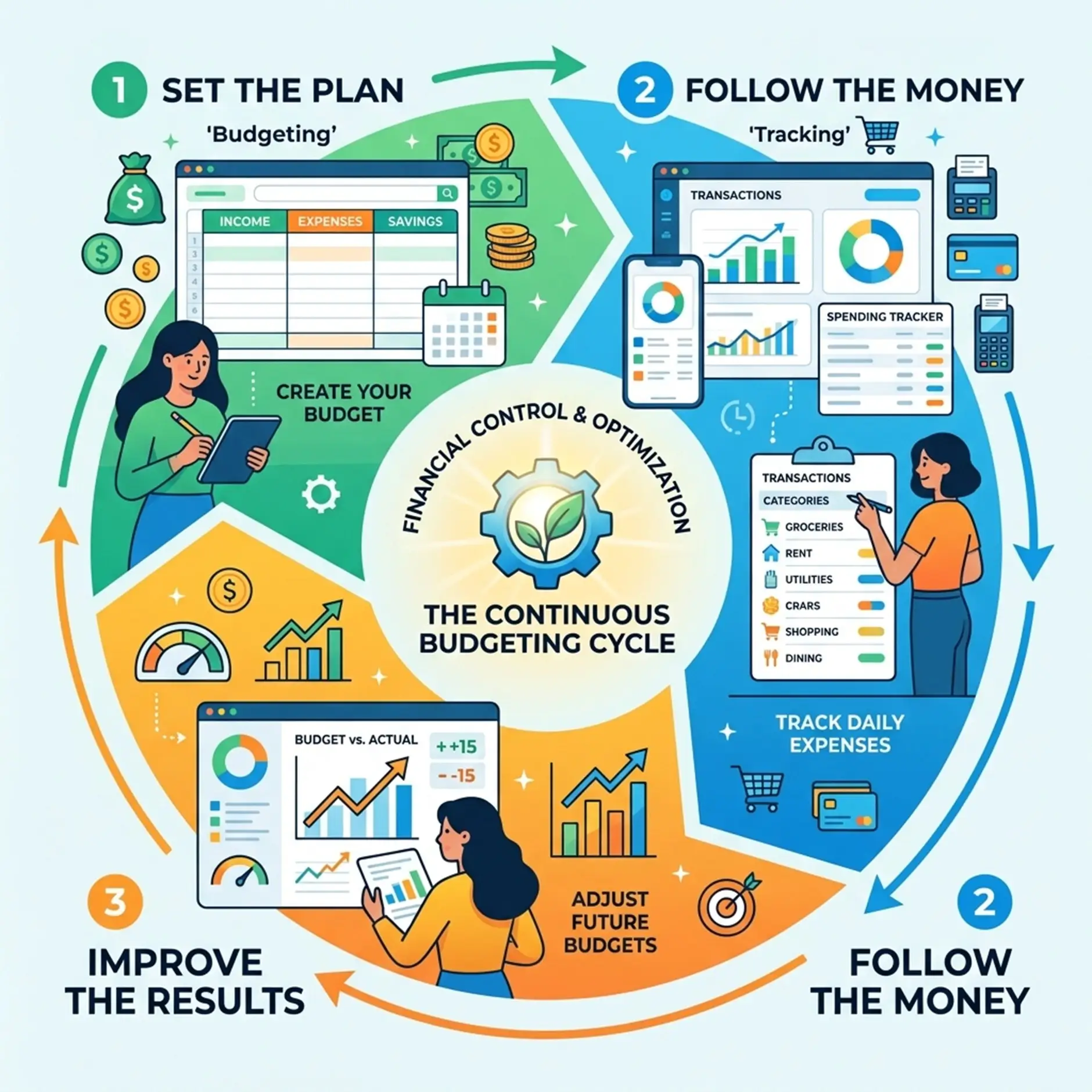
As of April 2026, the landscape of digital budgeting tools continues to evolve, but Google Sheets remains a steadfast and highly versatile option. Its accessibility and robust features make it a go-to for individuals and small businesses alike. We've seen a proliferation of excellent, free templates designed to cater to almost any financial scenario.
When selecting a template, consider your specific needs. Are you tracking personal monthly expenses, managing a household budget, planning for a large project, or overseeing a startup's cash flow? Google Sheets offers tailored solutions for each.
Some of the most essential template types we recommend exploring include:
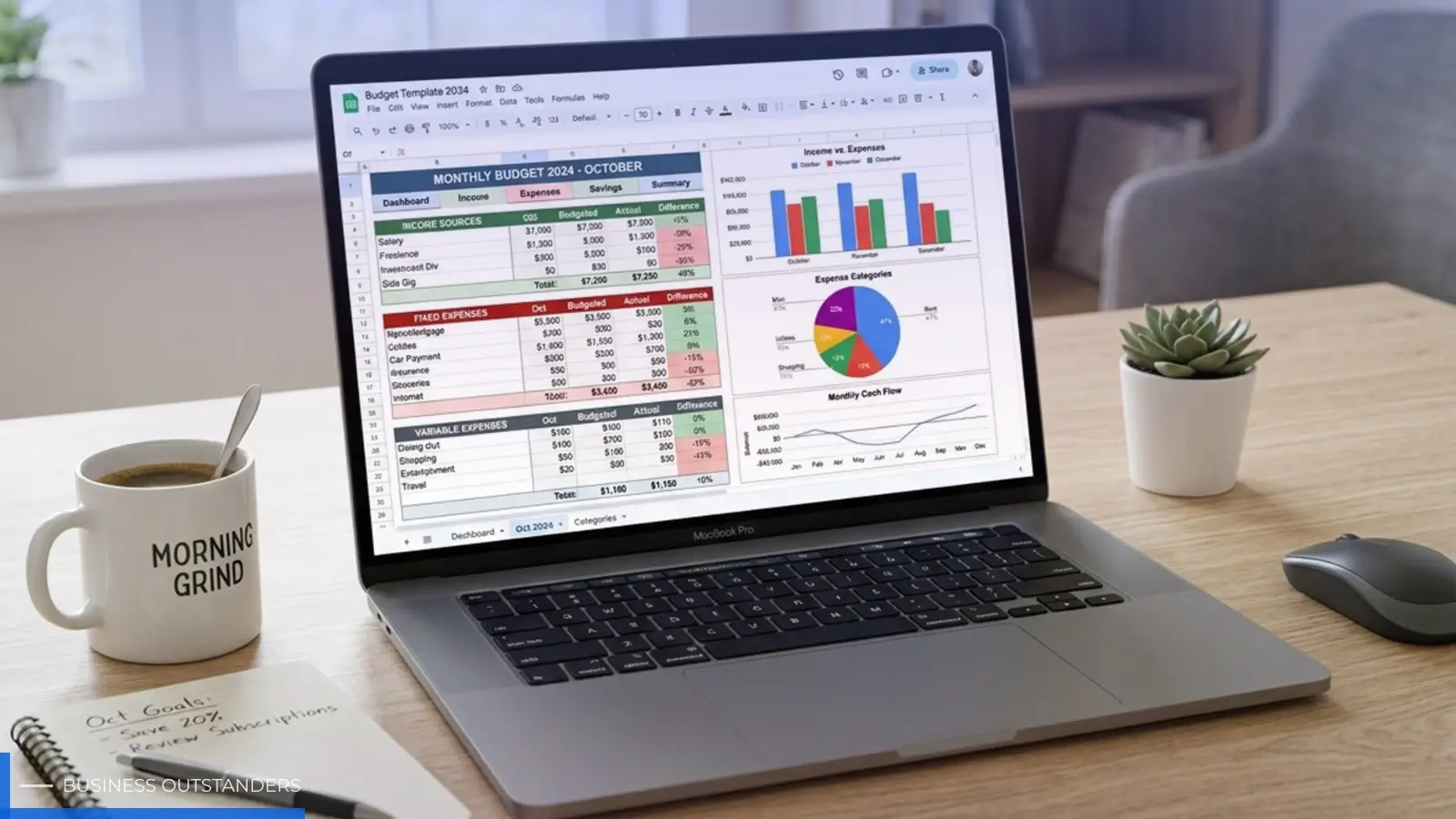
- Monthly Personal Budget Templates: These are often the starting point for many. They typically feature sections for income sources (salary, interest, dividends), categorized expenses (home, transportation, daily living, entertainment, health, savings), and a summary that calculates net income. A key feature to look for is the ability to track "projected" versus "actual" spending, allowing you to see variances and adjust your habits.
- Annual Business Budget Templates: For entrepreneurs and small business owners, an annual template provides a bird's-eye view of financial health over a longer period. These often include categories for revenue streams, operational costs, marketing, and profit projections.
- Household Budget Templates: Designed for families or shared living situations, these templates facilitate tracking multiple income streams and shared expenses. They often include provisions for individual contributions and joint financial goals.
- College Student Budget Templates: Tailored for student life, these templates help manage tuition, housing, books, and living expenses, often with a focus on limited income sources and debt management.
- Startup Cash Flow Templates: Critical for new ventures, these templates help monitor the flow of money in and out of the business, ensuring liquidity and preventing unexpected shortages.
- Construction Project Budget Templates: For specific project management, these templates can break down costs by labor, materials, equipment, and overhead, crucial for keeping complex projects on track.
Many of these templates share common, beneficial features. For instance, the best ones incorporate sections for "projected" versus "actual" amounts, with automated calculations to show the "difference" or variance. This immediate feedback is invaluable for understanding where your money is truly going. Income categories might include "Salary," "Freelance Income," or "Investments," while expense subcategories could break down "Groceries" into "Produce," "Meats," and "Pantry."
A common best practice across many templates is the use of "pale yellow" cells to indicate areas that are safe for user input without breaking underlying formulas. This visual cue helps maintain the integrity of the spreadsheet. To begin using any of these, the first step is almost always to navigate to File > Make a copy within Google Sheets, which creates your personal editable version in your Google Drive.
Let's compare two popular approaches to personal budgeting often found in Google Sheets templates: Simple Monthly and Zero-Based.
Feature Simple Monthly Budget Template Zero-Based Budget Template Core Principle Track income and expenses to ensure spending doesn't exceed income. Assign every dollar of income a purpose (expense, saving, debt) until the balance is zero. Flexibility Generally more flexible, allowing for some variance. Strict allocation, promoting intentional spending. Primary Goal Monitor cash flow, identify overspending areas. Ensure every dollar is accounted for, maximize savings/debt repayment. Complexity Often simpler, good for beginners. Can be more detailed, requiring careful tracking of all income and outflows. Variance Tracking Tracks projected vs. actual easily, highlighting discrepancies. Focuses on pre-assigning funds, so variances mean re-allocation. Income Categories Salary, interest, dividends, side hustle income. All sources of income are pooled and then distributed. Expense Subcategories Housing (rent/mortgage, utilities), Transportation (fuel, maintenance), Food (groceries, dining out). Highly detailed, every penny has a category, e.g., "Savings - Emergency Fund," "Debt Repayment - Credit Card." Editable Areas Typically marked with pale yellow for easy input. Similar pale yellow areas, but often more input fields due to granular tracking. Setup File > Make a copy, then fill in income and expense estimates. File > Make a copy, then categorize all income and assign it to specific expense, savings, or debt categories. Implementing Proven Budgeting Frameworks
Effective budgeting isn't just about tracking numbers; it's about applying a strategy that aligns with your financial goals. Google Sheets templates are incredibly adept at facilitating various popular budgeting methods, allowing you to implement a framework that suits your lifestyle and financial aspirations.
Three of the most widely adopted budgeting methods include the 50/30/20 rule, zero-based budgeting, and the 70/20/10 method. Each offers a unique approach to managing your money, and Google Sheets templates can be customized or found pre-built to support these strategies.
- 50/30/20 Rule: This method advocates allocating your after-tax income into three main categories: 50% for "needs," 30% for "wants," and 20% for "savings and debt repayment." "Needs" encompass essential living expenses like housing, utilities, groceries, and transportation. "Wants" include discretionary spending such as dining out, entertainment, and hobbies. The "savings and debt repayment" portion is dedicated to building an emergency fund, contributing to retirement, or paying down high-interest debt. This approach provides a balanced framework, ensuring that essentials are covered while still allowing for discretionary spending and future financial growth.
- Zero-Based Budgeting: Popularized by financial experts, zero-based budgeting ensures that every dollar of your income is assigned a specific purpose. This means that when you subtract all your expenses, savings, and debt repayments from your income, the remaining balance should be zero. This method requires meticulous planning but offers unparalleled control over your finances. It forces you to be intentional with every dollar, preventing "money leakage" and maximizing your financial efficiency. Google Sheets templates for zero-based budgeting typically feature detailed expense categories and a running total that helps you ensure all funds are allocated.
- 70/20/10 Method: Similar to the 50/30/20 rule but with different allocations, the 70/20/10 method suggests dedicating 70% of your income to living expenses (needs and some wants), 20% to financial goals (savings and debt repayment), and 10% to charitable giving or investments. This method is often favored by those who might have higher living costs or prefer a simpler split for their discretionary spending.
Regardless of the method you choose, Google Sheets templates make it easy to categorize your spending into fixed costs (like rent or loan payments) and variable expenses (like groceries or entertainment). They also provide clear sections for tracking savings goals, building emergency funds, and accelerating debt repayment. By consistently tracking your income and expenses against these frameworks, you gain invaluable insights into your spending habits and progress toward your financial objectives.
Applying the 50/30/20 Rule to Personal Finance
The 50/30/20 rule is a particularly effective allocation strategy for many individuals because of its simplicity and balanced approach. In a Google Sheets template, implementing this rule can be straightforward. You would typically have a section to input your total monthly after-tax income. Then, the template would either automatically calculate or provide clear guidance on how to allocate 50% for essentials, 30% for wants, and 20% for savings and debt repayment.
For instance, your "needs" section might include rows for mortgage/rent, utilities, car payments, insurance, and basic groceries. The "wants" section could feature dining out, subscriptions, entertainment, and shopping. Finally, the "savings and debt repayment" part would have lines for emergency fund contributions, retirement savings, investment contributions, and extra payments towards loans or credit cards.
Many templates designed for the 50/30/20 rule offer automated calculations that show you if your spending in each category aligns with the recommended percentages. This percentage-based tracking is a powerful visual aid, immediately highlighting areas where you might be overspending on "wants" or not saving enough. This allows for quick adjustments, ensuring you stay on track with your financial goals without feeling overly restricted.
Advanced Customization and Automation
While pre-built templates offer a fantastic starting point, one of Google Sheets' most significant advantages is its capacity for advanced customization and automation. This allows users to evolve their budgeting system beyond basic tracking, transforming it into a powerful tool for in-depth financial analysis and proactive management.
For those looking to delve deeper, Google Sheets provides features like pivot tables and custom dashboards. Pivot tables can summarize vast amounts of transaction data, allowing you to quickly analyze spending by category, subcategory, or even specific vendors over chosen periods. This capability is invaluable for identifying spending patterns and areas for optimization. Custom dashboards, often built on separate sheets, can then pull this summarized data and present it through interactive charts and graphs, offering a visual overview of your financial health, cash flow, and progress towards goals.
Conditional formatting is another powerful feature. You can set rules to automatically highlight cells in red if an expense category exceeds its budget, or in green if you're under budget. This visual feedback makes it easy to spot potential issues or successes at a glance. For trend analysis, you can create line graphs that track your income, expenses, and savings over months or years, revealing long-term patterns and helping you forecast future financial positions.
For users with more specific needs, Google Sheets supports script triggers. These are small pieces of code (Google Apps Script) that can automate tasks, such as clearing out monthly actuals at the start of a new month, sending email alerts for budget overruns, or even fetching data from external sources (though this often requires more advanced technical skills or third-party integration tools). Some templates even offer multi-currency support, which is particularly useful for international travelers or those with income/expenses in different currencies, allowing you to track everything in a primary currency while converting others.
Automated data syncing, while often requiring third-party tools, represents the pinnacle of budget automation. This involves connecting your Google Sheet to other financial applications or bank accounts to automatically import transaction data, significantly reducing manual data entry. This level of integration transforms your budget sheet into a dynamic, real-time financial hub.
Leveraging AI for Personal Finance Insights
The integration of artificial intelligence (AI) into Google Workspace, particularly through Gemini AI, is revolutionizing how we interact with spreadsheets. For personal finance, this means unprecedented opportunities for insights and automation. Gemini can act as your intelligent assistant, capable of generating complex formulas with simple natural language commands. Instead of remembering specific functions like SUMIF or VLOOKUP, you can simply ask Gemini to "sum all expenses for groceries in March" or "find the average spending on transportation last year."
Beyond formula generation, Gemini can analyze data patterns within your budget sheet. It can identify recurring expenses, flag unusual spending spikes, or even suggest potential areas for savings based on your historical data. This capability moves budgeting from reactive tracking to proactive financial management. Automated categorization, for instance, can learn from your past entries and suggest categories for new transactions, saving time and ensuring consistency.
Predictive spending is another exciting frontier. By analyzing your historical income and expense data, AI can help forecast your future cash flow, allowing you to anticipate potential shortfalls or periods of surplus. This foresight is crucial for making informed financial decisions, such as planning for large purchases or adjusting savings goals.
Features like "smart icons" allow you to quickly insert data types like people, files, or dates with enhanced context directly into your sheet. "Connected Sheets" further expand analytical capabilities by allowing you to access and analyze billions of rows of data from sources like BigQuery directly within Google Sheets, though this is typically more relevant for large-scale business analysis. For personal finance, the core benefit lies in simplifying complex tasks and extracting deeper insights from your financial data, making budgeting more intelligent and less labor-intensive.
Frequently Asked Questions about Personal Finance
We understand that diving into personal finance with Google Sheets can bring up several questions. Here, we address some of the most common inquiries to help you get started and make the most of your budgeting journey.
What are the best free Google Sheets budget templates available?
The "best" template often depends on your individual needs, but several stand out for their versatility and user-friendliness. For general personal finance, a Monthly Personal Budget template is an excellent starting point, often featuring projected vs. actual tracking and clear income/expense categories. For more rigorous control, Zero-Based Budget templates ensure every dollar is accounted for. If you prefer a simpler allocation, 50/30/20 Rule templates are highly effective. We also see great options for specific demographics, such as College Student Budget templates or comprehensive Household Trackers for families. Many templates also offer Annual Business Budget or Project Budget variants for professional use. The key is to find one that resonates with your financial philosophy and provides the level of detail you require.
How do I access and customize a Google Sheets budget template?
Accessing a template is straightforward. Once you find a template you like (often linked from a blog post or Google's own template gallery), simply click on the link. When the template opens in Google Sheets, you'll typically need to go to the File menu at the top left and select Make a copy. This action creates a personal, editable version of the template within your own Google Drive.
Customization is equally user-friendly. Most well-designed templates indicate editable areas, often highlighted in a "pale yellow" color, to prevent accidental modification of formulas. You can usually add or delete rows for income sources or expense categories, rename existing categories to better suit your spending, and even modify formulas if you're comfortable with spreadsheet functions. For instance, if you have a unique income stream, you can add a new row under your income section. If a pre-set expense category doesn't apply to you, you can simply delete it or rename it. The flexibility of Google Sheets allows you to tailor the template precisely to your financial situation.
What are the advantages of using Google Sheets over other tools?
Google Sheets offers a compelling suite of advantages that make it a superior choice for many budgeting needs, especially when compared to traditional desktop software or more rigid online tools:
- Real-time Collaboration: This is a significant benefit, particularly for household budgets or small business teams. Multiple users can access and edit the same sheet simultaneously, with changes updating in real-time. This eliminates the need for sending files back and forth and ensures everyone is working with the most current data.
- Cloud Access: Being cloud-based means your budget is accessible from any device with an internet connection – a desktop, laptop, tablet, or smartphone. This flexibility allows you to update expenses on the go, check your budget before making a purchase, or review your finances from anywhere.
- Mobile Compatibility: Google Sheets has dedicated mobile apps that are robust and easy to use, providing a seamless experience for budgeting on your phone or tablet.
- Free Templates: A vast array of high-quality, free templates are readily available, meaning you don't need to start from scratch. This significantly lowers the barrier to entry for effective budgeting.
- Automatic Updates: As a Google product, Sheets receives continuous updates and improvements, ensuring you always have access to the latest features and security enhancements.
- Integration with AI: With the advent of Gemini AI, Google Sheets is becoming an even more powerful tool, offering intelligent assistance for formula generation, data analysis, and pattern recognition, making complex tasks simpler.
- Cost-Effective: Perhaps one of the most attractive advantages is that Google Sheets is completely free for personal use, providing powerful spreadsheet capabilities without a subscription fee.
These benefits combine to create a dynamic, accessible, and powerful platform for managing your personal finances, making it an ideal choice for anyone looking to gain better control over their money.
Conclusion
As we look ahead to April 2026, the importance of robust personal finance management remains paramount. Google Sheets budget templates offer an unparalleled combination of accessibility, flexibility, and power for anyone seeking to gain financial clarity and achieve long-term stability. From simple monthly trackers to advanced zero-based systems, these tools empower individuals and households to take control of their financial destiny.
By embracing the diverse range of free templates, understanding how to access and customize them, and leveraging advanced features like pivot tables, conditional formatting, and even AI-driven insights, we can transform the often daunting task of budgeting into an engaging and empowering process. Consistent tracking, proactive management, and data-driven choices are the hallmarks of financial freedom, and Google Sheets provides the ideal platform to cultivate these habits. The scalability of these solutions ensures that whether your needs are simple or complex, your budget can grow and adapt with you, paving the way for a more secure and prosperous future.
Business Outstanders brings you sharp insights on tech, business, entrepreneurship, law, crypto, and more. We uncover what’s next. Stay updated, sign up for our newsletter and be part of the future!