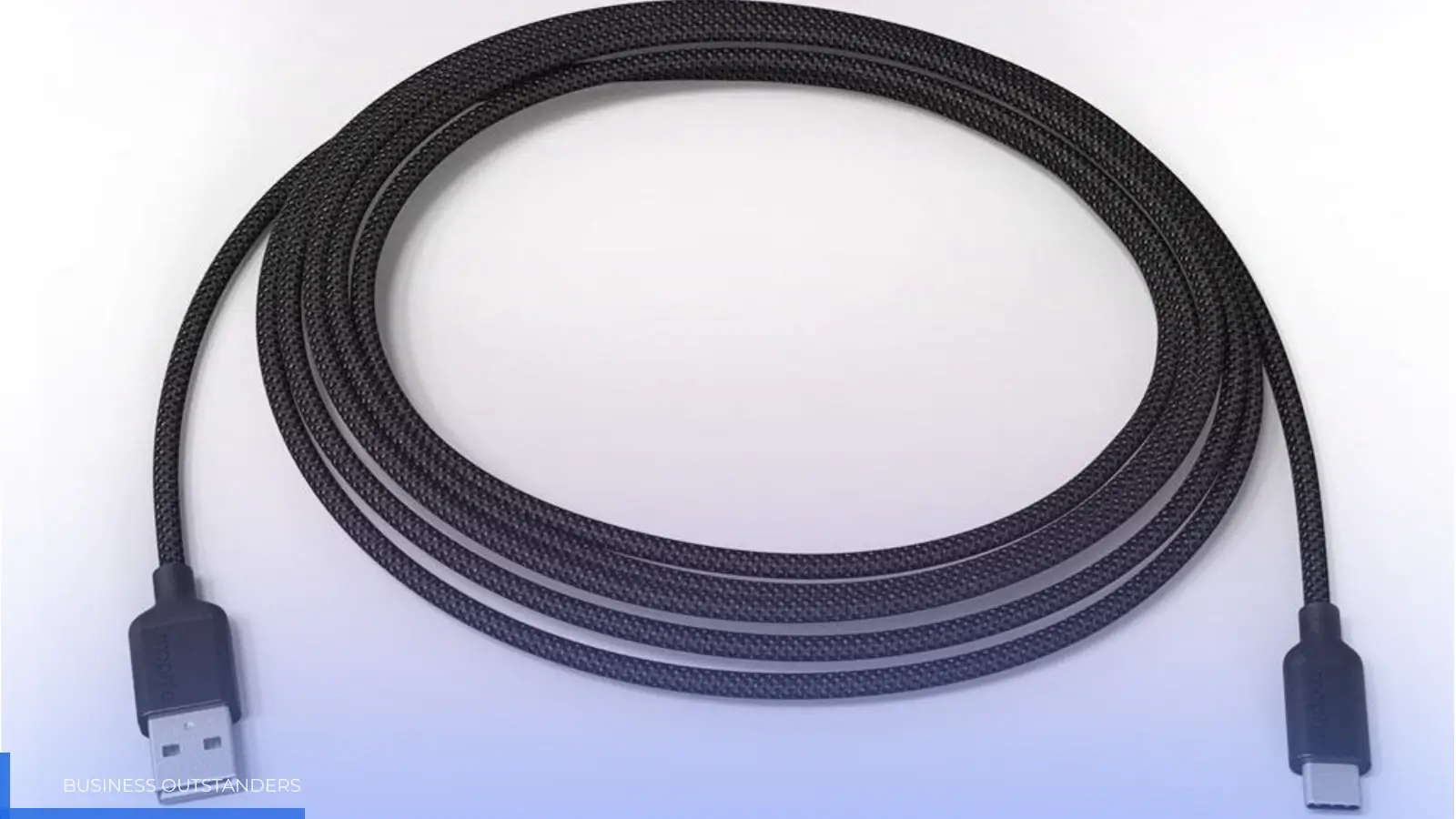
A USB cable is a cord that connects devices through the Universal Serial Bus (USB) standard so they can transfer data, supply power, or both. The part that causes confusion is that a USB cable is not defined by plug shape alone. Two cables may fit the same port but support different jobs, such as basic charging, file transfer, fast charging, display output, or docking.
If you only need to charge a small accessory, a correctly fitting cable may be enough. If you want to move files, power a laptop, connect a monitor, or use a USB-C dock, you need to check both the connector ends and the cable’s supported capabilities.
What a USB Cable Does in Everyday Use
A USB cable gives two devices a physical path to exchange power, data, or both. That is why the same general cable family appears around phones, tablets, laptops, chargers, printers, keyboards, cameras, external drives, hubs, docks, and many small accessories.
Common USB cable uses include:
- Charging a phone, tablet, power bank, controller, or wireless accessory.
- Transferring photos, videos, documents, or backups between a device and a computer.
- Connecting a keyboard, mouse, printer, scanner, camera, audio interface, or storage drive.
- Powering a small device from a charger, laptop, monitor, hub, or power bank.
- Linking a laptop to a dock or monitor when the cable, port, and device all support that function.
Some USB cables have the same connector on both ends, such as USB-C to USB-C. Others have different ends, such as USB-A to USB-C or USB-A to Micro-USB. The name of the cable usually tells you what those two ends are.
How to Identify a USB Cable by Its Two Ends
To identify a USB cable, separate three things: the cable, the connectors, and the ports.
- The cable is the whole cord.
- The connector, or plug, is the metal end that goes into a device.
- The port, or receptacle, is the opening on the charger, computer, phone, printer, or accessory.
Cable names usually describe both connectors. A USB-A to USB-C cable has a USB-A plug on one end and a USB-C plug on the other. A USB-C to USB-C cable has USB-C plugs on both ends. A USB-A to USB-B cable is often used with printers or larger peripherals.
The connector shape answers a physical question: will this plug fit this port? It does not answer every performance question. A cable may fit a port but still fail to transfer files, charge at the expected power, or support a monitor or dock.
For example, a USB-C cable may plug into your laptop and phone, but that does not prove it can handle laptop charging or high-speed data. A Micro-USB cable may charge an old camera, but if it is a charge-only cable, your computer may not detect the camera for file transfer.
Common USB Cable Types and What They Usually Connect
Most everyday USB cables can be identified by the connector shape at one or both ends. The table below covers the types most readers are likely to see.
|
USB connector type |
What it usually looks like |
Common uses |
Practical note |
|---|---|---|---|
|
USB-A |
Larger flat rectangular plug |
Computers, wall chargers, car chargers, hubs, older accessories |
Often appears on the charger or computer end of older and mixed-end cables. It is not reversible. |
|
USB-B |
Larger, squarer plug |
Printers, scanners, audio gear, some larger peripherals |
Less common on phones and modern mobile devices, but still common on printers and equipment. |
|
Mini-USB |
Small older connector, thicker than Micro-USB |
Older cameras, GPS devices, controllers, and accessories |
Mostly found on older devices. Check the device port before buying a replacement cable. |
|
Micro-USB |
Thin small connector used before USB-C became common |
Older Android phones, power banks, Bluetooth speakers, controllers, and accessories |
Some Micro-USB cables are mainly for charging, so do not assume every one supports data transfer. |
|
USB-C |
Small rounded connector with reversible orientation |
Modern phones, tablets, laptops, chargers, docks, monitors, external drives, and accessories |
USB-C is convenient, but the same shape can support different levels of power, data, and display features. |
Connector names are not the same thing as USB versions. USB 2.0, USB 3.2, USB4, and similar terms describe standards or capabilities. USB-A, USB-B, Micro-USB, and USB-C describe physical connector shapes.
How to Read Cable Names Like USB-A to USB-C
A USB cable name tells you what each end needs to connect to. The order of the name is less important than matching both ends to your actual devices.
For example:
- Use a USB-A to USB-C cable if your charger or computer has a USB-A port and your phone has a USB-C port.
- Use a USB-C to USB-C cable if both the charger and the device have USB-C ports.
- Use a USB-A to USB-B cable if your computer or hub has USB-A and your printer has USB-B.
- Use a USB-A to Micro-USB cable for many older phones, power banks, cameras, and accessories.
Before buying a cable, look at both ports you want to connect. Do not choose based only on the device side.
Why Some USB Cables Only Charge, Transfer Data, or Support Display
USB cables are not all the same once they fit. The connector tells you whether the cable can plug in. The cable design, supported USB standard, power rating, and connected devices determine what it can actually do.
USB-IF makes this distinction in its cable certification guidance, where cable capability is treated as a separate issue from connector shape. This is especially important with USB-C because one connector type can be used for basic charging, high-speed storage, laptop power, docks, monitors, USB4, or Thunderbolt, depending on the full setup.
Charging-Only vs Data-Capable Cables
Some USB cables are designed mainly for charging. They may power a device but not allow file transfer or accessory communication. This is common with some low-cost, older, or bundled accessory cables.
If your phone charges from a computer but does not appear for file transfer, the cable is one possible cause. The device settings, computer port, hub, or accessory can also be involved, so a known data-capable cable is a useful first test.
A data-capable cable is not automatically a fast data cable. It may support only basic data transfer, while another cable with the same connector shape may support much higher data speeds. Check the cable label, product page, or packaging when speed matters, especially for external SSDs, cameras, docks, and professional accessories.
USB Version, Power Rating, and Device Support
A fast cable cannot create fast charging by itself. The charger, cable, device, and charging protocol all have to support the required power level. If one part of the chain is limited, the whole setup falls back to what that weakest part can safely support.
USB-C is the clearest example. The USB Type-C specification page describes USB-C as reversible and capable of scalable power and performance, but that does not mean every USB-C cable supports every USB-C feature. USB Power Delivery can support much higher charging levels, and USB-IF’s USB PD guidance explains that USB Power Delivery can deliver up to 240W over a full-featured USB Type-C cable and connector. That is a capability of the right USB-C PD setup, not a promise made by every USB-C cable.
For USB-C to USB-C cables going through the USB-IF Compliance Program, USB-IF requires power markings such as 60W or 240W, and many performance-rated cables also show a data-rate marking. These labels help because they give you a better clue than shape alone.
Display and dock support need the same caution. A USB-C cable may fit a monitor, dock, or laptop, but the port, device, cable, and accessory must all support the required display or dock mode. If a cable is only meant for charging, it will not become a display cable just because both ends are USB-C.
How to Choose the Right USB Cable for Your Device
Choose a USB cable by matching the physical connection first, then the job you need the cable to do.
- Match the connector ends. Check the port on the charger, computer, hub, or accessory, then check the port on the device.
- Decide the main use. A cable for charging a small accessory has different requirements from a cable for laptop power, external SSD transfer, a monitor, or a dock.
- Check the needed specs. Look for charging wattage or current, USB data speed, display support, cable length, and durability when those details matter.
- Confirm the whole chain. The charger, device, cable, and any hub or adapter must all support the feature you expect.
- Use device documentation for advanced cases. Laptop charging, video output, docks, USB4, and Thunderbolt setups are more device-specific than basic phone charging.
For simple charging, the right connector and a safe, well-made cable may be enough. For fast charging, high-speed data, laptop power, or display output, the cable’s listed capability matters.
Quick USB Cable Selection Checklist
Before reusing or buying a USB cable, check:
- Do both connector ends match the ports you need to connect?
- Do you need charging only, data transfer, accessory connection, display output, or a mix of these?
- If you need fast charging or laptop charging, do the charger, device, and cable support the needed power level?
- If you need file transfer, is the cable data-capable?
- If you need high-speed transfer, does the cable list a suitable USB data rate?
- If you need a monitor, dock, or hub, do the device port, accessory, and cable all support that mode?
- Is the cable length practical without being longer than necessary?
- Does the packaging, product page, or cable marking clearly state the needed capability?
If the answer is unclear and the task matters, choose a cable with clear labeling instead of relying on plug shape. You can get more advice from a professional USB cable manufacturer—especially for bulk orders. Bytecable is a trusted USB cable factory; visit www.bytecable.com for more information.
When You May Need an Adapter, Hub, or Different Cable
Sometimes the right answer is not a new cable with the same two ends.
If the ports do not match, an adapter may solve the physical connection. But an adapter does not automatically add missing data speed, charging power, or display support. It only helps when the connected devices and cable already support the function you need.
If you want to connect several accessories to a laptop, a USB hub or dock may make more sense than separate cables. If you want to connect a monitor through USB-C, look for a cable, port, and adapter or dock that specifically support video output. If you need high-power laptop charging, use a charger and cable rated for that power level, not just any USB-C cable that fits.
The simple rule is: match the shape first, then verify the function. A USB cable is useful because it can carry power, data, or both, but the right cable is the one whose connector ends and capabilities match the device and task in front of you.
Business Outstanders brings you sharp insights on tech, business, entrepreneurship, law, crypto, and more. We uncover what’s next. Stay updated, sign up for our newsletter and be part of the future!