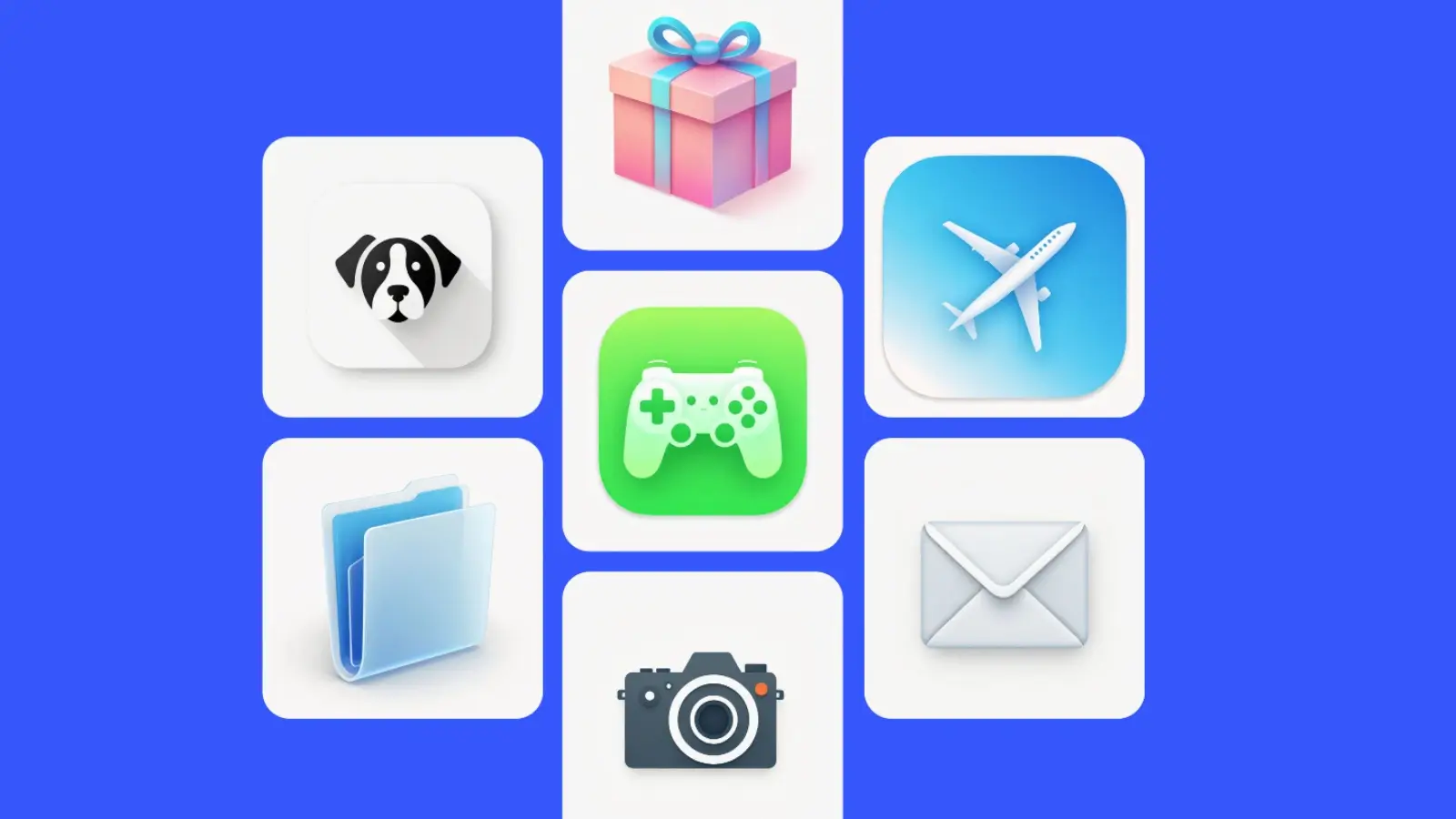
AI-powered Icon generators are revolutionizing art generation, particularly for those without technical skills. Whether you are building an app or creating branded content on social media, these tools let you design smarter by just providing a text prompt. However, if you're unsure how to create icons, this guide will provide a detailed walkthrough on creating eye-catching icons using these generators.
Part 1. What You Need to Know About AI-Powered Icon Generation
Icon creator is a digital tool that utilizes AI, specifically the Diffusion model, to generate appealing icons for you. According to “Generative AI in Design Market Report 2025” by Research And Markets, these tools are gaining immense popularity as the AI generative market size is growing from $0.81 billion to $1.11 billion in 2025. Upon knowing its hype, let's have a look at how these can be utilized in professional fields:
- App and Web Developments: Web developers can use these tools to generate instantly unique icons for buttons and navigation bars in SVG and PNG format for seamless integration.
- Branding: The users can create stunning icons that they can use in flyers, brochures and even the email campaigns to create a memorable identity of a brand.
- Prototyping: During the prototyping process, users are able to develop a number of icons at the same time and test the icons without wasting their time and resources.
- Education: The teachers can develop interesting icons in the slideshows, so the complex information can be understood by the students and the audience.
- Event Campaigns: With them, event managers can easily design eye-catching icons that can be used in posters and online advertisements that can be customized to a particular festival.
Part 2. Doing the Groundwork for High-Quality AI Icon Photos
Before you generate an icon using the free icon generator, here are some prerequisites that you should follow:
- Purpose of Art: Begin by brainstorming the product type, such as for marketing or social media, and then specify the target audience based on age and interests.
- Specify Style and Mood: Before making icon art, always decide on its style, like hyper-realistic or cinematic, and the color palette to provide the detailed prompt.
- Subject Details: Ensure you provide the main subject details, including its attributes like clothing, age, gender, color, and context for the image.
- Collect Reference Material: Try to collect realistic reference images in the form of sketches or mood boards that align with your theme.
- Consider Technical Requirements: While choosing an AI icon generator, make sure it gives output in 4K resolution and supports both JPEG and PNG file formats.
Part 3. A Complete Tutorial on Creating Stunning Art
To transform your ideas into eye-catching icons, go through the following guide on how to use the icon generator:
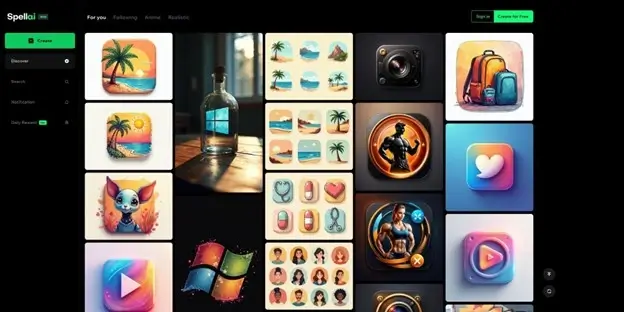
Step 1. Choose Spellai, Choose "Professional" Mode, and Choose a Ratio of 1:1
If you're looking for a high-quality AI icon, consider Spellai, which offers 3 modes tailored to both beginners and professionals. Its “Professional” mode, primarily designed for experts, provides a wide range of styles, such as “Photogenic and Cinematic.” While using this mode, users can add a negative prompt to specify the items to exclude from the icon. Upon knowing its features, let's access the tool to generate the icon.
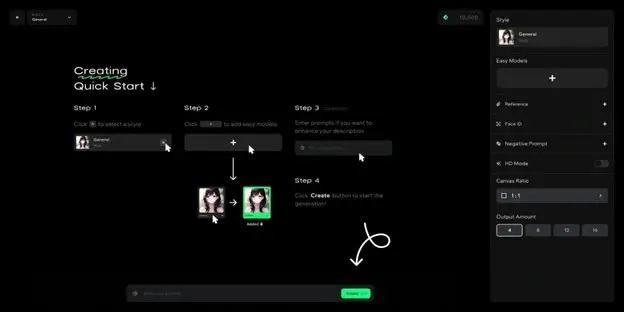
Step 2. Input Prompts like "App Logo Icon", "Rounded Square Shape" to Set the Icon's Outlook
Click on “Negative Prompt” to nullify elements and choose the “Output Amount” to 4. Afterwards, write your detailed idea for your icon into the “Text” box.
Step 3. Choose a Style, Such as "Colored Pencil," to Determine the Style of the Generated Image
Here, tap on the “Style” menu to further select the “Colored Pencil” style from the given options.
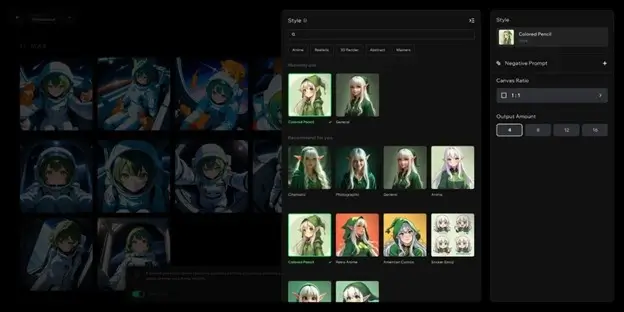
After selecting all the necessary settings for your icon, click on the “Create” button to initiate the generation process.
Step 4. Export Icon Art and Share it With the Spellai Community
Finally, your icon is generated; save it to share later with the Spellai community.
Part 4. Prompt Guide: How to Generate High-Quality Icons in Spellai
To obtain the best icons, you have to use the right prompts, so go through the following section to review the best prompt combinations:
Type 1. A Collection of Icons
“Create a collection of (landscape icons) for a travel app, including (beach), (sea), and (palm), designed with (clean, simple lines) for clarity, displayed in (rounded square) shapes, (cartoon) style, (modern), (minimalist) aesthetic, (high resolution), with (no shadow) and a (clean background), presenting a cohesive and appealing design suited for innovative healthcare solutions.”
While adding this Custom Prompt in “Professional” mode, you can use “Colored Pencil” style with Custom Ratio “3:4”. This powerful prompt combination is beneficial for creating several icons simultaneously for travel theme apps.
Type 2. Single App Icon Design
“App logo icon, travel app shows palm and beach, rounded square shape, (cartoon style), bright and vibrant colors, crisp clean background, high resolution, ideal for a productivity tool, simple and elegant composition, contemporary aesthetic.”
By using the prompt mentioned above, add “Cartoon 3D” Style, along with a “1:1” Canvas Ratio within “Professional” mode. Users can generate a hyper-realistic beach and palm-themed round shape icon for their app using this prompt.
Conclusion
As a final thought, there are numerous icon generators available through which anyone can generate icons by just providing a text prompt and choosing a style. However, if you want a reliable one, then we recommend using Spellai, the best AI art generator, which lets you select the desired canvas ratio. Moreover, we have also narrowed down the powerful prompt ideas to generate the best icons.
Business Outstanders brings you sharp insights on tech, business, entrepreneurship, law, crypto, and more. We uncover what’s next. Stay updated, sign up for our newsletter and be part of the future!